SuiteKeep Concert Suite Management, Refined
Track seats, manage ticket sales, pull down the latest concert schedule with one tap, and collaborate with co-investors — all from one elegant app.
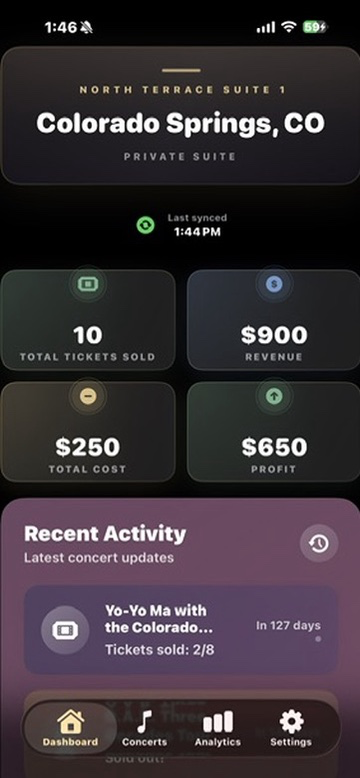
Track seats, manage ticket sales, pull down the latest concert schedule with one tap, and collaborate with co-investors — all from one elegant app.
Polished details, better performance, and a little celebration when every seat is sold.
No more manual downloads. Tap Update 2026 Concerts in Settings and the app pulls the latest schedule directly — new shows appear instantly, and your existing data stays untouched.
Six settings cards consolidated into three focused sections: Suite Setup, Sync & Sharing, and Data & Archives.
Archive past season data to keep your active concert list clean while preserving historical records.
CloudSync and Collaboration merged into a single card with an inline status indicator and one-line sync summary.
Faster launches, smoother scrolling, and under-the-hood fixes that make every interaction feel snappier.
Seat cards now show status, buyer, and price at a glance with a cleaner, more readable layout.
Sell the last seat and a champagne-gold confetti celebration fills the screen — because a full suite deserves a moment.
Everything you need to manage your concert suite
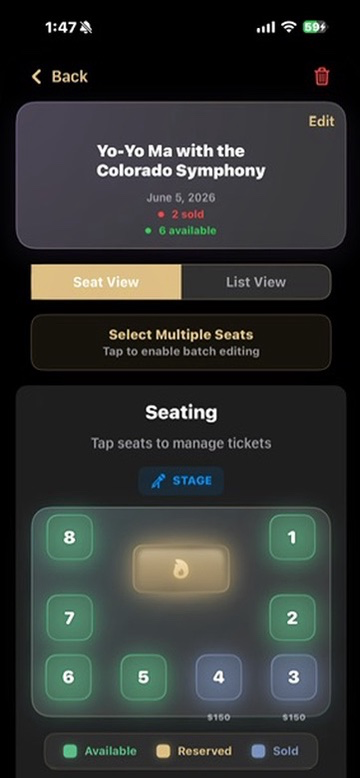
Visual seat selection with our unique firepit layout. Track availability, reservations, and sales for each seat.
Monitor performance metrics, revenue trends, and occupancy rates with beautiful visualizations.
One tap in Settings pulls down the latest concert schedule. New shows are added automatically while your existing seat and ticket data stays safe.
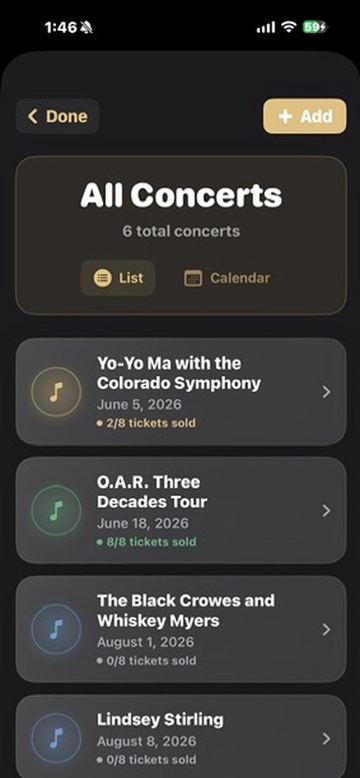
Organize upcoming performances with calendar and list views. Never miss a show.
Personalize seats with names for family tickets. Track who's attending each concert.
Track ticket prices, costs, and profit margins. Generate detailed financial reports.
Share your suite with co-investors, assign roles, and sync data in real-time across all devices.
Seamless data synchronization across all your devices with real-time updates and visual sync indicators.
Archive completed seasons to keep your active list focused. View past archives anytime from Settings.
Learn how to use every feature of SuiteKeep
Follow these steps to get started with your concert suite management:
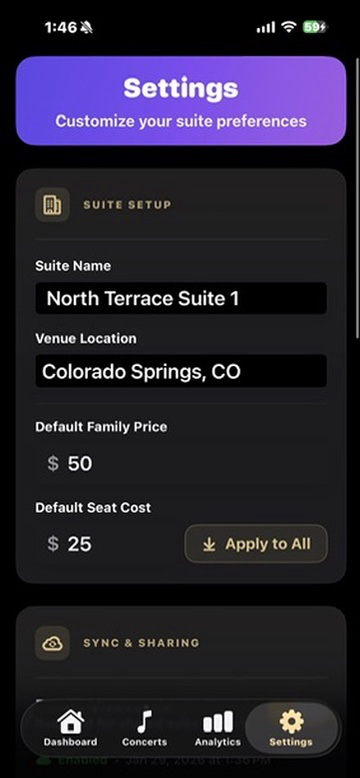
Navigate to Settings and personalize your suite name and venue location.
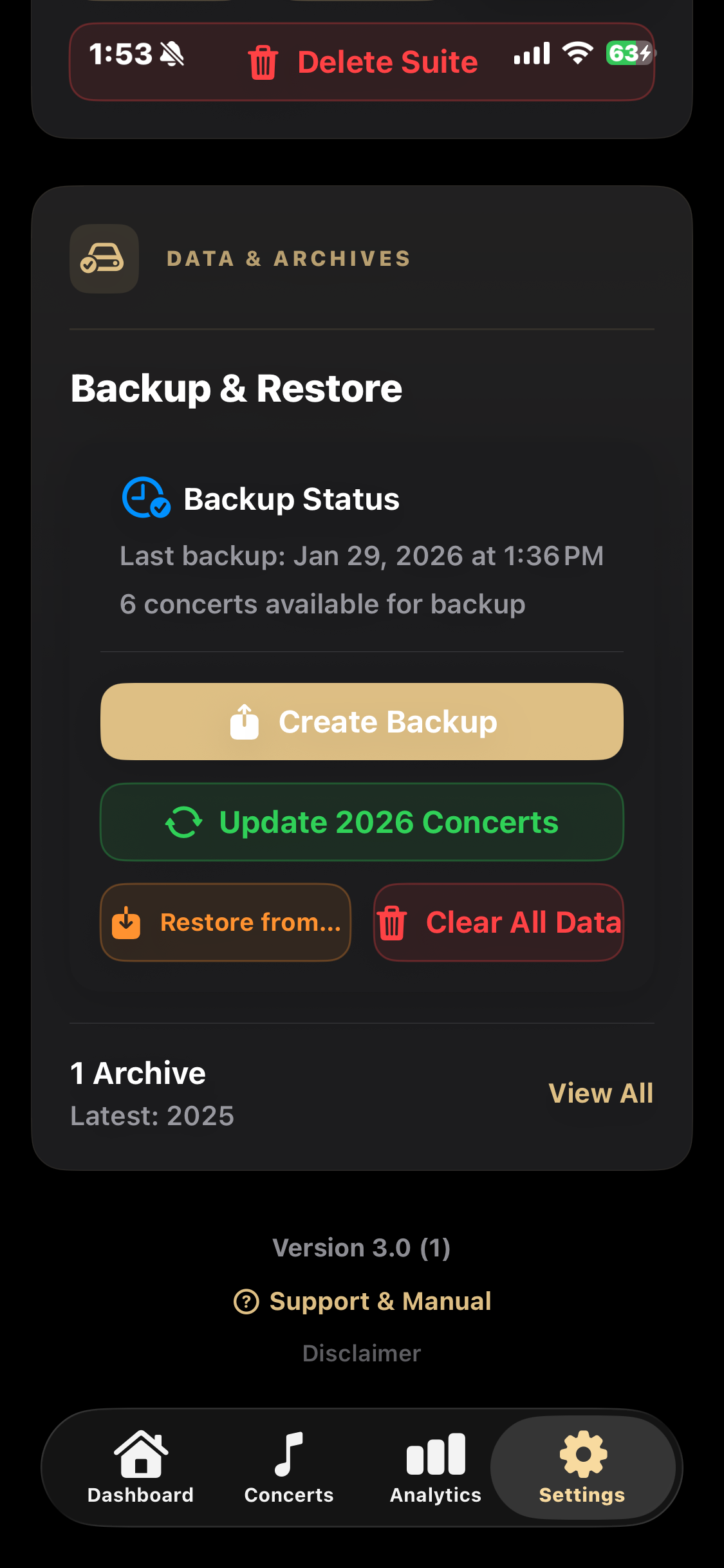
The fastest way to get started is in Settings → Data & Archives — tap Update 2026 Concerts and the full schedule loads automatically. You can also add individual concerts manually from the Concerts tab.
Select seats in the interactive firepit view to update their status and details.
Switch between list and calendar views to see your concerts in different formats. The calendar view provides a monthly overview of all scheduled performances.
Use batch mode to update multiple seats at once:
Personalize family seats with names:
The dashboard provides key metrics at a glance:
Track your suite's performance over time with visual charts showing:
Version 3.0 organizes Settings into three focused cards plus a compact footer.
Configure your suite's core identity and pricing defaults:
CloudSync and Collaboration are now combined in one card:
Backup, restore, update concerts, and archive past seasons from one card:
Below the three cards, a lightweight footer shows:
Quick answers to common questions
Tap on the seat in either the firepit view or list view, then select "Available" as the status. The seat will immediately return to the available state and any associated data will be cleared.
Yes! Each concert has a parking ticket option. When viewing an individual concert's seat layout, look for the parking icon near the top or bottom of the screen. Tap it to add parking details including price, quantity, and notes.
Swipe left on any concert in the list view to reveal the delete option, or tap on the concert and select "Delete Concert" from the menu.
Yes, navigate to Analytics and use the reporting feature to generate and export comprehensive reports of your concert data in PDF format.
Your data is automatically saved locally and synced via iCloud when CloudSync is enabled. You can also create manual backups in Settings under the Data & Archives card — perfect for device transfers or safekeeping.
When marking a seat as sold, enter both the sale price and your cost. The app automatically calculates profit margins and displays them in the Analytics dashboard.
Go to Settings, open the Data & Archives card, and tap "Create Backup" to generate a comprehensive backup file. You can share it or save it, and later restore using "Restore from Backup".
Open Settings, tap the Data & Archives card, and hit Update 2026 Concerts. The app connects to our server and pulls down any newly announced shows — all in one tap. Your existing seat assignments, prices, and notes are never touched. Tap the button again anytime to check for new additions to the schedule.
In Settings, scroll to the Year-End Archives section within the Data & Archives card. You can archive all concerts from a specific year. Archived data is preserved and can be viewed anytime.
In the Data & Archives card, tap "Clear All Data". This has a two-level confirmation system to prevent accidental deletion. It will completely reset the app to its initial state.
In Settings, open the Sync & Sharing card and enable "Suite Sharing". Tap "Create Suite", then send the generated invitation code to others. They enter the code in their app under Sync & Sharing to join.
Invitation codes are unique text strings generated by the suite owner. Send the code via text, email, or any method. The guest enters it under Sync & Sharing in their SuiteKeep app. Codes are secure and suite-specific.
Owner: Full access including managing members and deleting the suite. Editor: Can modify concert data and seat information. Viewer: Read-only access to view all information but cannot make changes.
The Sync & Sharing card shows an inline status indicator with sync state, last sync time, and any errors — all on one line. When syncing, the sync button animates to show progress.
Your local data remains intact when you leave a shared suite. You'll keep a copy of all concert information, but future changes won't sync with other members. Create backups before leaving for extra safety.
SuiteKeep is provided "as is" without warranties. While we strive to provide reliable software, we make no guarantees about accuracy or functionality. We do provide email support for questions and issues.
We're here to help you succeed
Download the full concert schedule directly within the app. Go to Settings → Data & Archives and tap Update 2026 Concerts to pull down the latest shows.
Our support team is ready to assist you with any questions or issues you may have.
suitekeep25@gmail.com
Within 48 hours